Showing posts with label Blogger Resources. Show all posts

Thursday, 7 March 2013

Add a Simple and Sober Social Subscription Widget

Finishing and hovering effect is very awesome in the CSS and when we create anything by using them then result always comes out very awesomely and very creative. We also do something like this with it and create one of the very awesome and simple and sober social subscription widget with RSS, Twitter and Facebook which can be fit in any kind of size and it is purely created by using CSS without any JavaScript OR jQuery. So it will work very awesomely like in live demo.


Live Demo......!

Add Simple Subscription Widget

  • Login to Blogger > Dashborad
  • Click on Drop Down Menu and select Layout
  • Add a HTML/JavaScript Gadget
  • Paste below code in it.


 <style>
/*  ---------www.umerprince.blogspot.com----------- */
.social-connect-widget{background:#FFFFFF;border:1px solid #E7E6DE;padding:5px; border-radius:5px; -moz-border-radius:5px;}
.social-connect-widget:hover{border:1px solid #000000;background:#e5e3e3;
-webkit-box-shadow: 5px 5px 5px rgba(0,0,0,0.4);
-moz-box-shadow: 5px 5px 5px rgba(0,0,0,0.4);
box-shadow: 5px 5px 5px rgba(0,0,0,0.4);}
.social-connect-widget a{text-decoration:none;font-weight:bold;font-family:Arial,Helvetica,Sans-serif;color:#4B4D4E}
.social-connect-widget a:hover{text-decoration:none;color:#F77C04}
.social-connect-widget img{vertical-align:middle;margin-right:5px;height:42px;width:42;}
</style>
<br/>
<div class="social-connect-widget" style="margin-top:0px;margin-bottom:10px;">
<a href="http://feeds.feedburner.com/WidgetGenerators"><img alt="RSS Feed" src=" https://blogger.googleusercontent.com/img/b/R29vZ2xl/AVvXsEgO4MQoEuhoNZFtU1jhUZ-TIXeGe-6NPJ4juLiUjL4ZPjNuTLbNQ5EcYSQ4L7nbQaFjriLSky3K6qrZrroQWH884x6zwTdxq3eyehYqiXvsggY7q-VtjfzJYw57wmLdWp4BOkLcKlEa1j75/s1600/Rss-icon.png" /></a><a href="http://feeds.feedburner.com/WidgetGenerators">Subscribe  RSS Feeds!</a>
</div>
 <div class="social-connect-widget" style="margin-bottom:10px;">
<a href="http://twitter.com/WidgetGenerator"><img alt="Follow Us on Twitter!" src="https://blogger.googleusercontent.com/img/b/R29vZ2xl/AVvXsEiLDI_eRwluTLzrd5LlavxBDt77v7-qb09aa0M34_T5XWjOhjUOfGF4Hxrgh08ESIaSFlIiJiSV68e_EG-LcDWCrySF_i52kmwgoBkjGak1-XxP7uRVbZO26AW6lBzKO1AMJJMA0C8n75b4/s1600/Twitter-icon.png" title="Follow Us on Twitter!" /></a><a href="http://twitter.com/WidgetGenerator">Follow Us on Twitter</a>
</div>
<div class="social-connect-widget" style="margin-bottom:10px;">
<a href="http://facebook.com/WidgetGenerators"><img alt="Be Our Fan!" src="https://blogger.googleusercontent.com/img/b/R29vZ2xl/AVvXsEitmmpAmfjtK-qKpVABq79Z6i3lVNjPaWoX-gFLuWdU3p4Cnk42SIthAd3D4SH7vu6ikn_LxTInQV8DOj6vXXi7NWLK3DGrZbqu4eAmNJdGp4way18WFLfH1bq76As7EcqfSOL6OYsf3_HX/s1600/facebook-icon.png&#39; title=&#39;Be Our Fan" /></a><a href="http://facebook.com/WidgetGenerators">Follow us on Facebook </a>
<a style=" font-size:9px; color:#3B78CD; text-decoration:none;" href="http://www.umerprince.blogspot.com/"></a>
</div>


  • Now Save your Widget.


 Make Changes....!

  • Replace WidgetGenerators it with your RSS user name (2 times)
  • Replace WidgetGenerator it with your Twitter user name (2 times)
  • Replace WidgetGenerators it with your Facebook  user name (2 times)

If Any Problem Comes, Ask in Comments

Credits = WidgetGenerators.Blogspot.com

Thursday, 28 February 2013

Fully Customizable Related Post Widget for Blogger

Related post widget always help us to reduce bounce rate and increase visitors time on the site. Related post are always shown at end of article to engage readers.
In Blogger, there are no official widget available. But now you can easily add Best Customizable Related Post Widget for Blogger using nrelate. nRelate is a free tool that adds related post widget to blogger even in wordpress or any other site. In this post I will only show you how to add  Customizable Related Post Widget for Blogger using nrelate.


nrelated posts 
Fully Customizable Related Post Widget for Blogger
  • Go to Partners.Nrelate.com. Register for your new account here.
  • Click Install Tab => Blogger
  • Enter the domain in which you want to add nrelated post widget for blogger. Than click “Submit”

nrelate add site
  • In next page. It will ask you to select option where you want to show related post.  Better to select Post only!
nrelate shows widget option

  • Click the “Add to Blogger” button below and then click “Add Widget” as shown in the following image.
This will complete the installation. It may take up to 2 hours before appearing on your site.
  • After clicking the Continue button you will be presented with a option to Add the widget to your blog. Select your blog and click the Add Widget button

nelate add widget to site
That’s it. Now you had added related post widget for blogger using nrelate. Now its time to customize it ;)

How to Customize nrelate widget ?

Customization is very easy. All you have to do is just customize your site from nrelate menu.B elow are few options that are available in nrelate related post widget for blogger dashboard.
Go to Manage Setting => Blogger. Here you will see main setting first.
  1. In main setting you can edit size of your related post along with number of articles you want to show in related posts.
  2. You also show sponsored ads. If you want to make extra money ;) from your site!
  3. You can also add link back to nrelate site if you like this widget.

Customizing Thumbnail Style!

You can customize this related post widget thumbnails style. This comes with 5+ awesome style for your related post. You can select anyone that you want from that drop down option in “Manage Setting => Blogger => Styles ”

Don’t be panic. :D
It may take 2 hours to show related post widget in your blogspot blogs. I am using nrelate in my wordpress blog too. Its awesome related post widget.
That’s all. I hope you like this article and related post widget for blogger by nrelate.com . Its best widget not only easy to use but also very easy to customize. Isn’t it?;)

(Article Via ABT)

Monday, 25 February 2013

Submit Your Blog/Website To Top 31 Search Engines Free

Here is a great list of Search Engines and Directories based on Alexa Ranking and our Professional Webmasters Advice. Listen, you may have a nice website but in the world wide web, but practically your prospects would not be able to find you. It is like finding a needle in a super-sized hay stack.
You can submit your websites to this most essential list (which we would update from time to time). Publicize your domain name / website pages here to enjoy optimum media exposure. Save, Copy, Paste, Recommend each of this website.

Read Below !....
      http://galearning.com/images/organic-content-writing_clip_image004.jpg
    1. Google.com Alexa Traffic Rank: 1
    2. Yahoo.com Alexa Traffic Rank: 4
    3. Bing.com Alexa Traffic Rank: 22
    4. Dmoz.org Alexa Traffic Rank: 870
    5. ActiveSearchResults.com Alexa Traffic Rank: 2,419
    6. ScrubTheWeb.com Alexa Traffic Rank: 3,355
    7. ExactSeek.com Alexa Traffic Rank: 6,557
    8. FyberSearch.com Alexa Traffic Rank: 8,005
    9. Anoox.com Alexa Traffic Rank: 8,449
    10. SecretSearchEngineLabs.com Alexa Traffic Rank: 9,849
    11. SearchSight.com Alexa Traffic Rank: 12,570
    12. GhetoSearch.com Alexa Traffic Rank: 12,794
    13. WebWorldIndex.com Alexa Traffic Rank: 13,777
    14. SonicRun.com Alexa Traffic Rank: 15,988
    15. BiggestClassifieds.com Alexa Traffic Rank: 16,401
    16. LinkCentre.com Alexa Traffic Rank: 16,814
    17. VieSearch.com Alexa Traffic Rank: 17,464
    18. InfoTiger.com Alexa Traffic Rank: 18,223
    19. MasterMOZ.com Alexa Traffic Rank: 19,035
    20. Amfibi.com Alexa Traffic Rank: 19,995
    21. GigaBlast.com Alexa Traffic Rank: 20,404
    22. ExaLead.com Alexa Traffic Rank: 24,389
    23. Cipinet.com Alexa Traffic Rank: 29,958
    24. NexusDirectory.com Alexa Traffic Rank: 25,490
    25. A1WebDirectory.com Alexa Traffic Rank: 51,341
    26. Amidalla.de Alexa Traffic Rank: 60,734
    27. BestOnlineClassifieds.com Alexa Traffic Rank: 70,777
    28. Boitho.com Alexa Traffic Rank: 84,307
    29. TowerSearch.com Alexa Traffic Rank: 124,579
    30. SpiffySearch.com Alexa Traffic Rank: 154,200
    31. Super.info Alexa Traffic Rank: 203,178

      Friday, 15 February 2013

      100 Useful Blogging Tools

      Credits= Daily Tekk  This post is #17 in DailyTekk’s famous Top 100 series which explores the best startups, gadgets, apps, websites and services in a given category. Total items listed: 105.

      Have you heard?!? Blogging is dead! It’s not, actually, but that’s what some people would like you to believe. Blogging is very much alive and well 5 months into 2012 (you’re reading a blog right now). Blogging is one of the Internet’s oldest platforms for sharing information and it’s just as important as ever to the Internet ecosystem. True, less people and businesses are blogging this year, but the bloggers that remain tend to actually publish worthwhile content. If you’re a tech startup, you can’t tell me you don’t want to be covered on Techcrunch. Yes, Twitter (a micro-blog itself) and Facebook (built-in blogging capabilities) and a slew of new apps and networks are making it easier than ever to share information, and control who sees it, but some things simply can’t be said in 140 characters or less or shouldn’t be hidden behind a walled garden. The open Web is here to stay (it would be a sad world if it disappeared) and blogging remains the best way to publish high-quality, findable and useful information quickly and easily for a very large segment of the world’s population.

      This is an exciting time to be a blogger in my opinion. Look, DailyTekk is just about 3 months old at this point and we’re getting 140,000 page views per month, are part of the SAY Media network, have multiple partnerships with interesting people and companies and are already nearing 1000 Twitter followers. Clearly people like the content we are producing out and how it is being delivered. Like many of the articles I have created, I made this post at least partially for myself. I’ve included some awesome-looking new blogging platforms, tools that can help optimize blog content creation, ways to engage readers and encourage loyalty, tools for enhancing blog performance and security, creative ways to embed media in your posts and much more.

      New & Emerging Blogging Platforms


      Jux - Your pictures and words fill the page edge to edge.
      scriptogr.am - Converts markdown text files in Dropbox into a blog.
      Svbtle - The essence of blogging.
      Hoydaa - Lightweight and scalable blogging service for Google Apps users.
      Compendium - Content marketing software (blogging for businesses).

      Optimize Blog Content Creation


      Zemanta - Blog publishing assistant (recommendations and related items).
      List.ly - List making made easy, fun and social.
      DivvyHQ – Spreadsheet-free editorial calendar application.
      SourceBottle - Connects expert sources with bloggers for free.
      Webdoc – Enables you to create rich media posts in seconds.
      ScribbleLive - Cover news in realtime with LivePage and LiveArticle.
      StoryCrawler - Information-gathering engine. Find unique and meaningful content.
      CurationSoft - Meet your new content assistant.
      Listiki – Make lists, share lists, read lists.
      HARO - Help a Reporter Out. Get qualified sources when you need them.
      Demolistic – Create, manage and discuss lists.
      Editz - Allows readers to post corrections (grammar, spelling, factual accuracy, and more).
      Listography – Create a collection of lists and try the list topic generator.
      After The Deadline – Spelling, style and grammar checker for WordPress.

      Engage Blog Readers & Encourage Loyalty


      socialbungy - Next-generation social content builder.
      Livefyre - Supercharge your outdated comment system. Go realtime.
      BuddyPress – WordPress-powered social networking in a box.
      Wibiya – Boost your website with interactive features.
      Zooshia - Create your own social widget.
      E-MAILiT - Helping social syndication happen better.
      Disqus - Comments platform with awesome features and powerful tools.
      Gremln - Professional social media tools (starting at free).
      NewsPin - Become a social media rockstar. Coming soon.
      Shareaholic - Social bookmarking and sharing plugin.
      blogfrog - Communities and conversations for bloggers and brands.

      Blog Performance & Security


      Akamai - Web app acceleration and content delivery.
      Yottaa – Site speed optimization and website monitoring.
      AlertBot – Website and service monitoring.
      CloudFlare - Protects, accelerates and keeps your blog online.
      VaultPress – Automattic’s official WordPress backup offering.
      Load Impact – Website load and performance testing.
      GTmetrix – Website speed and performance optimization testing.
      Blog Metrics - WP plugin that calculates raw author contribution/conversion rate.
      Pingdom – Uptime and performance monitoring made easy.
      Which Loads Faster? – Have two sites compete head to head to see which one’s faster.
      Site Trail - All-in-one free site analysis tool.
      XCloner – Website backup and restore (PHP/Mysql).
      blogVault – WordPress backup service.
      BackupBuddy – Easily backup and move WordPress.
      Tynt - See what gets copied/pasted from your site.

      Embed Media In Your Blog


      Pixlr - Like Photoshop but free and online (fast and no registration required).
      SoundCloud – Share your sounds.
      Skitch – Annotate, edit and share your screenshot and images… fast.
      Screenr - Instant screencasts (just click record).
      Blip.me – Turn your mobile phone into a voice broadcast network.
      Curate.Us - Share screen clips everywhere.
      Cinch – Create and share micro podcasts, images and text updates.
      BYOAudio – Put audio and video on your website.
      Aviary - An awesome photo editing solution for web/mobile.
      Odosketch - Very cool web-based sketching tool.
      PodSnack – Flash MP3 player.

      Blog Design & Themes


      WooThemes - Premium WordPress themes and plugins.
      PageLines - Drag and drop web design for WordPress.
      Blogic - Instantly creates a WordPress theme that matches your website.
      Headway Themes - Drag and drop WordPress design tool.
      StudioPress – Premium WordPress themes and design frameworks.
      Graph Paper Press - WordPress themes for creatives.
      Theme Forest - Premium WordPress themes, web templates and mobile themes.
      Elegant Themes - Premium WordPress themes.
      Themify - Awesome WordPress themes.
      NewWPThemes - Free WordPress themes.
      RocketTheme - Joomla templates, WordPress themes, Magento templates and more.
      WTS - WordPressThemeShock. WordPress themes and web design sets.
      Mysitemyway - A new breed of WordPress themes.

      Ad Networks for Bloggers


      SAY Media – Digital publishing company that works with the best editorial voices online.
      Skyscrpr – Advertising, simplified. Sell advertising directly to buyers.
      iSocket – Self-service advertising and direct sales tool for publishers.
      BuySellAds – Makes buying and selling ads incredibly easy.
      The Deck – Self-described as the premier ad network for creative culture.
      Yoggrt – The creative ad network.
      Carbon Ads – A premium, invite-only ad network.
      InfluAds – The quality-only advertising network.
      Fusion Ads – Making advertising beautiful.
      Advertising.com – Get more return for the same inventory.
      adBrite – The largest independent ad exchange.

      Blogs for Bloggers


      ProBlogger – Blog tips to help you make money blogging.
      Copyblogger – Content marketing and copywriting articles.
      Blogging Tips – Daily blog tips plus info on themes and design.
      TentBlogger – Blogging for fun and profit.
      BloggingPro – News, plugins and themes for blogging applications.
      Spice Up Your Blog – Blogger tips, blogging gadgets and design tutorials.
      For Bloggers By Bloggers – Helping you make your blog the best it can be.
      The Blog Herald – News, information, tips and commentary on blogs.
      Daily Blog Tips – Tips for bloggers.
      Blogging Without a Blog – Your blogging classroom on the web.

      Other & Miscellaneous


      dlvr.it - Feed your blog to Twitter and Facebook.
      OnlyWire - Automated submission to social media sites.
      Scribe - Simple SEO software from Copyblogger Media.
      Stribe - Link your website to others to share social interactions.
      Plinky - Inspiration. You have answers. Plinky has questions.
      Tagaroo – WordPress tag suggestion plugin.
      Ping.fm - Update all of your social networks at once.
      Penzu - Write in private.
      TestSize.com – Test any website in any browser size.
      Behappy.me - Inspiration. Receive an inspiring, happy quote in your email daily.
      MarsEdit 3 – Desktop blog editing for the Mac.
      Ping-O-Matic – Pinging search engines so you don’t have to.
      timekiwi - Create beautiful timelines from your blogs/social media.
      Blog2Print – Print your blog.
      CoveritLive - Easy to use, scalable live-event platform.

      How To, Contact Blogger Team for Real help?

      UmerPrinceIf you are a blogger or looking up for blogging to choose it as your career then Google has some real good news for you. Blogger has always provided its users, all the opportunities to express their point of views, meanwhile learning a great deal online. Taking a deeper look and conducting a detailed survey on the problems and queries of its users, Blogger team has recently announced its availability and contact procedure with its users. Knowing that, you can now feel free to present your queries to the team and can hope to get some fast results.

      Blogger- The Team
      There is no doubt about the popularity as well as the effectiveness of the products that are been offered by Blogger. It has also been noticed that the team is keen to counter the user issues in no time and has established an efficient Global team, all dedicated to ensure that no compromises are made over the quality of product.


      When To Contact Blogger Team
      Blogging is an interesting domain where a blogger never gets perfect in his business, as something new is leaking in to the market now and then. In these circumstances, there are all possibilities to have some problems arising. If you go through the forums and take a general look on the most occurring issues, you would find that the bloggers might find themselves in a difficult situation in the following scenarios:

      1) When planning to make an upgrade to a custom domain

      2) Feel like giving a new look to their blog

      3) Where to start it off

      4) Difficulty in building a considerable readership

      5) A sudden drop in the blog’s stable traffic.

      6) No relevant Ads been Offered by Google Ad Sense

      In short, there are much more than this when you feel like actually contacting the team to let the team know about your problem that might be a specific one for you, in your case. However, it is a dilemma that many bloggers, although earning with their blogs, find it hard to basically how and where to start a proper communication with team. It seems like Blogger has heard it all and has developed helpful resources that can help the users in learning about the latest features. Not only this, but you can now report your queries with blogger, and can also post your questions where the blogger support Team and Top Contributors can help you in tracking down some worth following answers.


      Blogger Help Center
      Blogger Help Center is where you can find all the latest news about the features been lined up and leaked out recently, knowing all about the dashboard activities and much more.


      Google Feedback
      Blogger welcomes your feedback truly. Therefore if you have a good problem to report, new ideas to share, or have some valuable suggestions to give, never hesitate! Sending a feedback is much easier and all you need to do is to click the gear icon in the dashboard to fill a feedback form.


      Blogger Product Forum
      It is essentially important for the bloggers to be a part of active communities that are related to their niche. Blogger Product Forum is an official community been offered by Blogger where you would find Blogger Support staff, and Top Contributors who are always ready to listen you and help you out completely.


      Abuse Reporting Form
      Coming across to an unethical stuff and abusive content is something that a blogger must be prepared for. Luckily, Blogger Team is smart enough to provide some remedies for this too. With Abuse Reporting Forms. you can report abusive content and ask for special help from the team. For details, Visit Google’s Terms of Service and/or Content Policy.

      In brief, Things are pretty easy with Blogger, We recommend you to start exploring the support tools that are offered by the team to facilitate you.

      Best Wishes,

      Thursday, 14 February 2013

      mystery blogger

      Hi Dear Bloggers, Can Anyone Tell Me What Is The Mystery Of  Blogger ??....


      Contact me @ UP
      Who is the mystery blogger?

      UmerPrince

      Saturday, 9 February 2013

      How to Disable Right Click in Blog And Give a Notice

      UmerPrince


      Do you know what is "Plagiarism"? Plagiarism in internet means someone that copy some or all articles in blog and another website for his blog, without include the source. This can be include to steal a copyright. You can protect your blog from plagiarism by disable the right click in your blog. How? Just follow the steps below

      1. Log in to your blogger account
      2. Go to Design>>>Page Elements>>>Add Gadget
      3. Choose HTML/Java Script
      4. Copy and paste the code below

      <SCRIPT language=JavaScript>
      <!-- http://www.umerprince.blogspot.com -->
       var message = "Don't Copy";
       function rtclickcheck(keyp){ if (navigator.appName == "Netscape" && keyp.which == 3){  alert(message); return false; }
       if (navigator.appVersion.indexOf("MSIE") != -1 && event.button == 2) {  alert(message);  return false; } }
       document.onmousedown = rtclickcheck;
      </SCRIPT>

      5. Save.

      Friday, 8 February 2013

      How to Add Auto Refresh In Blog

      UmerPrince


      The function of this trick is to refresh our blog every some minutes. What for? Because, if we refresh the blog, we can see the blog update. Now, if you want to know how to add auto refresh in blog, you can follow the steps below.

      1. Log in to your blogger account
      2. Go to Design --> Edit HTML
      3. Copy the code below, and paste under </head>

      <meta content='300' http-equiv='refresh'/>

      => 300 means, the blog will refresh every 300 seconds

      4. Save it now.  

      Easier and Faster to Edit Blogger Favicon

      UmerPrince


      Hi, friends! Did you know? Blogger just release a new feature. What is that? Favicon Editor! Yups.. the function is for Easier and Faster to Edit Blogger Favicon. I think it's very nice feature. We just need little steps to edit our blog favicon. But, where is Favicon Editor place? You can find on Design --> Page Elements.


      Then, how to add the favicon? You just click "Edit" on Favicon menu. The, you can upload you favicon file (a file with .ico). Just share some tips, you can get a file with .ico in favicon generator. Firstly, upload you picture, and FaviconGenerator will be generate into .ico. So, we just waiting what is Blogger next update...

      Blogger Font Hacks By Using Google Font

      UmerPrince

      The use of fonts in a blog must be appropriate. Because the style of the fonts must be adapted to available fonts in the visitors's computer. For example, your blog is using Dave Crossland font, sure not all computers can display the font type. So to conquer this problem, you can use Google Font. Google Font is free fonts directory to display a special fonts in a website or blog. Then, how to use it? You can go to Google Font Directory or follow the steps below.

      1. Go to Google Font Directory
      2. Then choose one of the fonts, for example I choose Slackey


      3. Then click on "Use this font"


      4. After that, you will see the code. Because I choosed Slackey, so I given this code

      You can put it under <head> , before you put the code, you must add "/" before ">"


      <link href='http://fonts.googleapis.com/css?family=Slackey' rel='stylesheet' type='text/css'/>

      and then we also given the CSS code. We can put it above ]]></b:skin>

      h1 { font-family: 'Slackey', arial, serif; }

      You can change h1.

      5. If you've finished, you can save now.  

      Wednesday, 6 February 2013

      Html Color Codes Generator

      Full new color palette, Click on one of the colors to view its Hexadecimal value. And More..

      Friday, 1 February 2013

      4 Immediate Actions you must take if your Website is Hacked


      UmerPrinceHas your website been hacked? It's not uncommon to see sites getting hacked these days. Even large websites with lots of protection can get hacked. Indeed, it's usually the large and popular websites that are prone to hacking. Security is a major problem these days. And if your site gets hacked, it can get damaged in a number of ways. You could either lose all your data, or your site could lose its ranking due to a malicious software installed. So while you can do backups and stuff, you cannot prevent someone from hacking into your site. So if your site gets hacked, there are some recommended actions you should take to get it back.

      How to tell if your website is hacked?

      UmerPrince

      You can confirm that your website has been hacked by visintg Google Webmaster Tools. The Google Webmaster Central will let you know if there's malicious activity going on on your site, or if it has been infected with a virus that might harm other users. As a result, Google removes your site from search results until the virus has been removed. So you should check your Webmaster Tools to check for any problems that may arise, and to repair the damage done as soon as possible.


      4 things to do when your site is hacked

      1. Take your website down

      Yep, take it down. I know it's kinda harsh, but it is the fisrt thing you should do ethically. Because if it's not taken down, it might effect other websites as well. You might want to contact your web host for this, because other sites on their system might get infected as well.

      Also, change ALL of your passwords. Your site might have multiple users, or you might be using multiple FTP accounts, and so on. Change passwords for each and every account. And also monitor all of your accounts, because in all likelihood, the hacker might have created new accounts in order to make a back-door for himself.
      2. Check out the nature of the attack

      With regards to a hack-attempt or a virus attack, it's best to fisrt judge the nature of the attack, and then act accordingly. Your first stop should be Google Diagnostics page, which will give you information about any virus or malware present on your site. To do this, just use this URL (www.google.com/safebrowsing/diagnostic?site=yoursite.com), and replace the yoursite.com part with your site's address. After that, there's a checklist you should perform.
      Check your Google Webmaster Tools for any messages regarding the virus. You can also see pages with malware by going into Health >> Malware. Delete those pages if necessary. Hackers usually create new pages for malicious purposes.
      Do a complete scan of your computer. Check to see if there isn't any virus disguised as an image (it happens!). This is one of the easiest way to hack someone. Also, check what extensions your browser is using, and delete all the unnecessary ones.
      Use the Fetch as Google in Webmaster Tools to detect other pages with virus, and use the Link Removal Tool to hide those pages down temorarily from users and search engines, so they won't be served to users.

      3. Getting rid of hacked content

      Now that you know what and where the problem is, it's time now to get rid of it. Use Google Webmaster Tool's Malware page to see what pages host malware, and delete them. If you have a backup of your content, then you might want to delete all your content, and then restoring it, which should hopefully get you rid of the viruses. You can always check with Google Safebrowsing diagnostics, and Malware page to see if there's still some malicious activity left.

      You should also update the management system you're running your website on, such as WordPress etc. Also update any plugins, or third party software you have on your site.

      4. Tell Google you're good to go again

      Once you're sure that all the viruses and malwares have been removed from your site, you should ask Google to review your sit again. To do this, go into Webmaster Tools, and click on Health >> Malware, and then click on Request a review. Google will review you site again, and remove the warning if it finds the site clean.

      UmerPrince

      Remember. This method only removes that malware warning that is displayed to users. If the hacker has been spamming, you might come under a penalty. To fix that, you will need to file a reconsideration  request to Google. Red our article on how to do this

      Thursday, 31 January 2013

      Blog Traffic - How I Increased My Traffic by 10x

      I know that many prefer Wordpress over Blogger but I still think having Google host my platform with more open customization vs. using custom hosting is an easier option.

      UmerPrince
      That said, the blog traffic results for this site after one year are astounding! This being the 21st post in one year seems quite small overall - in fact, that is only averaging about 1.8 posts a month.  Yet, this blog is dominating Google results for many keyword phrases surrounding Blogger customization.


      Blog traffic increasing 50% every month
      UmerPrinceLet's take a look at the numbers - since January 2012 the number of visitors has increased about 50% per month to a total of 35,000 visitors. As you can see the vertical growth is very fast now reaching about 400 visits a day or 12,000 visits a month. As of today - January 13th - I have 4778 visits. The peak traffic in December is about 8500 visits. You can see my current daily traffic at the top of this post hovering at about 300-400 visits a day - these are great numbers!

      One thing I would like to point out about blog traffic is that I did no back linking strategy to this site other than having a hosted planning site that pointed to this blog as I built it and then a few social media sites - Twitter.com, Stumbleupon.com and Last.fm. Twitter was my only active links back - whereas Stumbleupon and Last.fm were just accounts that had profile links. I use Stumbleuopn and Last.fm to sporadically update my Twitter feed to keep it active.

      What does this really mean to you? This truly means that you only need relevant content to drive higher search results with stronger blog traffic - and that Google will reward you for many search phrases if you target your posts. If you subscribe to my email list above, I'll give you deeper insight on how I approached this blog and how you can do the same for your blogspot traffic results.

      Wednesday, 23 January 2013

      How To Create And Add A Stylish Signature To Your Blogger Posts

      If you look at the bottom of the posts in many blogs you will see they finish with a signature.I think the signature looks great and adds a bit of style to the posts.These signatures are very easy to create and add to your blog and in this post i will show you how.You can actually use a small pad to write you signature or pick from one of hundreds of pre-made signatures.I suggest using the pre-made signature, using the pad to create your actual signature is almost imposable.

      This Post Has Been Updated On 8th June 2012.

      Create the signature


      I'm going to create another signature and walk you trough the steps as i do.

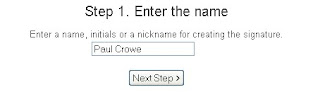
      Step 1. Go to My Live Signature and click 'Start Now' you don't need to register.

      Step 2. You have 2 free options here, choose to use the wizard as i did or be brave and try to write one.

      Write in your name as i did below :


      Choose the font you want to use from the hundreds they have and click next as below :


      Follow the steps to design the signature :

      -You now choose the size i choose size 3.
      -Select the color, i choose a transparent background.
      -Choose the angle slant, I choose 2.

      Now your signature is ready, click on 'Want to use this signature?' as below :


      Now choose 'Generate html code' you will be provided with the code :

      This is the code for my new signature :
      <a href="http://www.mylivesignature.com" target="_blank"><img src="http://signatures.mylivesignature.com/54488/48/010EAA2D956848A1728F82E9602766AD.png" style="border: 0 !important; background: transparent;"/></a>

      And this is the new signature :


      If you know how to upload the image to Blogger or Photobucket or any image hosting you may want to do that, if not don't worry we will use it as it is.

      We only want the image and we don't want the image to be a link back to My live signature so you can remove the code in blue and keep the code in yellow :
      (If your not sure how just change www.mylivesignature.com to the address of your blog)
      <a href="http://www.mylivesignature.com" target="_blank"><img src="http://signatures.mylivesignature.com/54488/48/010EAA2D956848A1728F82E9602766AD.png" style="border: 0 !important; background: transparent;"/></a>

      Add the signature to your blog


      There are two ways to add the signature to your blog the first way is the easiest but it wont be in you previous posts.The second way adds it directly to your template.

      First way to add the signature to your blog.
      .
      Step 1. In the new Blogger dashboard click the drop down menu for your blog > Choose settings > On the left of the settings page choose 'Posts And Comments'.

      Step 2. At the top of the Page you will see 'Post Template' paste in the code and save:


      Now every time you you go to write a post the signature will be already in the post.

      Second way to add the signature to your blog.


      Step 1. In Your (New Design) Blogger Dashboard Click The Drop Down Menu For Your Blog > Choose Template > Then Edit Html > Now Proceed > Tick The Expand Widget Templates Box as shown in the video Below :


      Find the following code in your blogs html :
      (Click 'CTRL and F' for a search bar to find the code)
      <data:post.body/>

      Paste the code for your signature Directly Below or After <data:post.body/>

      Note : If <data:post.body/> is in your template twice place it after the second one.

      If you have any trouble or need more help leave a comment below.Now save your template and your signature has been added.

      Drop Your Comments And Questions Below.
      .

      Related Posts Plugin for WordPress, Blogger...