Showing posts with label Oracle 9i. Show all posts

Monday, 18 April 2011

How to Install Oracle 9i???(step by step)

 Well, there is no need to Purchase Oracle 9i CD's from market.
  Download the Torrent file, using Bit torrent or u torrent.
  Torrent file given in below link.  Follow all steps and screen-shots....

For Windows XP !!!

Step # 1,2,3...

1. Downlaod a torrent file given in the Link: http://www.mediafire.com/?bubr9u8i3iybw5m
    this torrent file contain 3 CD'S.
2. When your torrent file download complete, you should download WinMount software
    Link :  http://www.mediafire.com/?yg5dl242htf8403
    and install the software for creating virtual CD-ROM.
     It will help you for installtion.

3. When you are intalling winmount remember that it will ask you for option.. 
   A small form will open there all option are checked. Here to uncheck the RAR and Zip then finish it...     And see your torrent downloaded file (Disk1,Disk2,Disk3). It's ISO file...

How to Install Oracle 9i???(step by step)

Step # 4..

4. open cd 1 and goto install folder and then win32,and then Run SETUP.


How to Install Oracle 9i???(step by step)

Step  # 5,6

5. Oracle universal installer:welcome will open , click on Next.


6. Don't change the source path.

How to Install Oracle 9i???(step by step)

Step # 7,8

7. you can change destination name and path.(it's no necessary)


8. After changing name and path click on Next


How to Install Oracle 9i???(step by step)

Step # 9,10

9. Available product window will show same as imege below click on Next.


10.Installation type window will open, click on Next.


How to Install Oracle 9i???(step by step)

Step # 11,12

11.Database configration window will open.select a database suited to your needs.click next


12.Database identification window will open. write 'oracle' in Globle database name and then click on Next.


How to Install Oracle 9i???(step by step)

Step # 13,14

13. you can change database file location.


14.Use the default character set and then click on Next.


How to Install Oracle 9i???(step by step)

Step # 15,16 

15.Summary window will open click on INSTALL.


16.your oracle 9i installation will Start.


How to Install Oracle 9i???(step by step)

Step # 17,18,19

17.when 44% installation will completed, it will ask you for 2nd cd.


18.Double click on 2nd cd, a new virtual CD-ROM created name as(i.e X or Y or Z).
19.Change the path (Example=  "y:\DISK2") click ok.

How to Install Oracle 9i???(step by step)

Step # 20,21,22

20.when 88% installation will completed, it will ask you for 3rd cd.


21.Double click on 3rd cd, a new virtual CD-ROM created name as(i.e X or Y or Z).
22.Change the path (Example=  "X:\DISK3") click ok.


How to Install Oracle 9i???(step by step)

Step # 23,24


23.After 100% Configration will be start. On 'agent configration Assistant' occur a error it is
   not a zip file, click ok(Don't worry about it)


24.when other 3 completed, click on exit and yes to close the setup.


How to Install Oracle 9i???(step by step)

 Step # 25,26,27

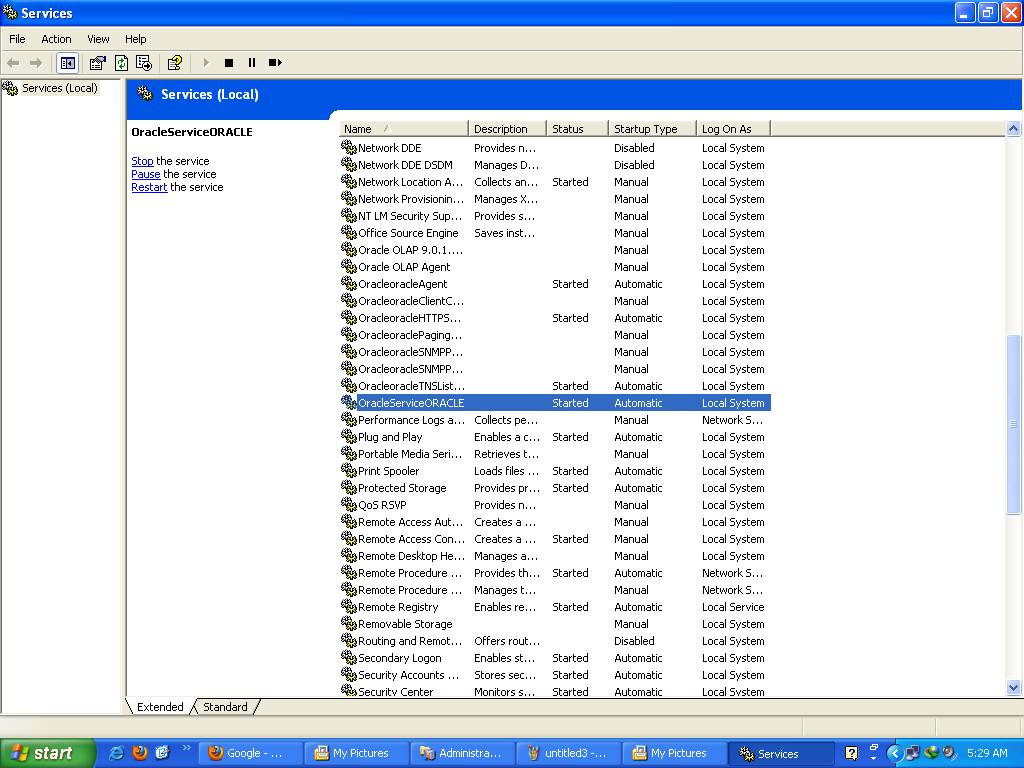
25.Go to Control Panel.
26.Go to Administrative Tools


27.Go to Services.


How to Install Oracle 9i???(step by step)

Step # 28

28.click one by one on all Oracle services and start it. some will not started(don't worry about it)


How to Install Oracle 9i???(step by step)

 Step # 29,30,31

29.Goto START> All programs > oracle-oracle > Application Development>SQL Plus


30.Enter user name= scott and password = tiger.
31.If it give an error like(protocol adapter error) don't worry about about it.

How to Install Oracle 9i???(step by step)

 Step # 32,33

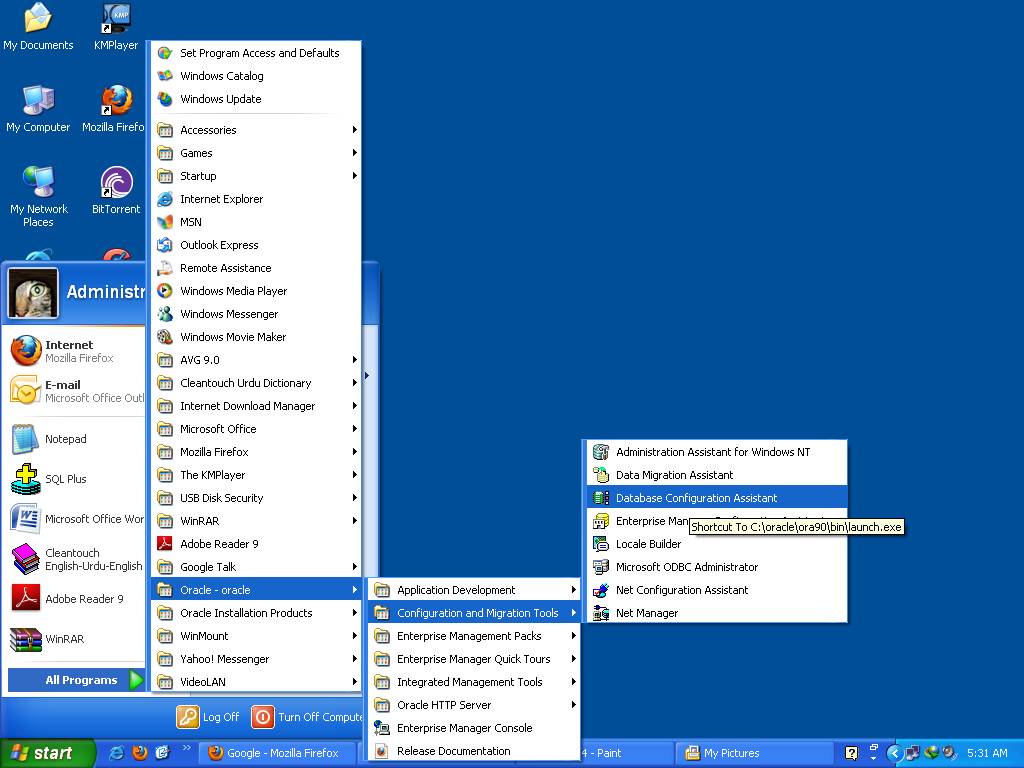
32.Goto START> All programs > oracle-oracle > configreation and migration tools> database
   configration assistence


33.click on Next.


How to Install Oracle 9i???(step by step)

 Step # 34,35


34.click on Next.


35.click on Next.


How to Install Oracle 9i???(step by step)

 Step # 36,37

36.Give database name "oracle" and click on Next.


37.click on Next.


How to Install Oracle 9i???(step by step)

Step # 38,39


38.click on Next.


39.click on Next.


How to Install Oracle 9i???(step by step)

 Step # 40,41,42...

40.mark on create database and click on Next.


41.your database created with the name oracle(if you have to choose oracle).
42.After completion click on Finish.


Related Posts Plugin for WordPress, Blogger...